Life in Weeks
Visualize your time. Make it count.
See Your Life as a Grid of Weeks
Inspired by Tim Urban's powerful visualization, Life in Weeks transforms your desktop into a constant reminder of time's passage. Each week is a square. Each square matters.
Features
Life Mode
Visualize your entire life from birth to expected lifespan. See how many weeks you've lived and how many remain.
Year End
Track weeks remaining until December 31st. Perfect for annual goals and year-end reflections.
Next N Months
Focus on the upcoming months. Great for project timelines and short-term planning.
Beautiful Themes
Choose from 4 carefully crafted themes: Dark, Terminal, Minimal, and Sunset Gradient.
Auto-Update
Wallpaper regenerates automatically every Monday at 6 AM. Set it once, forget it.
Cross-Platform
Works on Windows, macOS, and Linux. Available as both CLI tool and GUI app.
Download
For developers and terminal enthusiasts. Lightweight ~5MB binary.
Windows Installation
# Option A: install directly from git (no clone needed)

cargo install --git https://github.com/atsedeweyn/life-in-weeks liw-cli


# Option B: download from Releases

# 1. Download liw-windows-amd64.exe from Releases

# 2. Rename to liw.exe (optional)

# 3. Add to PATH or run directly:

.\liw.exe generate --mode year-end
macOS Installation
# Option A: install directly from git (no clone needed)

cargo install --git https://github.com/atsedeweyn/life-in-weeks liw-cli


# Option B: download from Releases

# 1. Download liw-macos-arm64 (M1/M2) or liw-macos-amd64 (Intel)

# 2. Make executable and move to PATH:

chmod +x liw-macos-*

sudo mv liw-macos-* /usr/local/bin/liw
Linux Installation
# Option A: install directly from git (no clone needed)

cargo install --git https://github.com/atsedeweyn/life-in-weeks liw-cli


# Option B: download from Releases

# 1. Download liw-linux-amd64 from Releases

# 2. Make executable and move to PATH:

chmod +x liw-linux-amd64

sudo mv liw-linux-amd64 /usr/local/bin/liw
Beautiful desktop app for everyone. ~15-20MB installer with visual interface.
How to Use
CLI Usage
1. Generate Your First Wallpaper
# Life mode (requires date of birth)

liw generate --mode life --dob 1995-03-20


# Year-end mode

liw generate --mode year-end


# Next 6 months

liw generate --mode next-months --months 6
2. Choose a Theme
# Available themes: dark, terminal, minimal, sunset

liw generate --mode life --dob 1995-03-20 --theme terminal
3. Preview Without Setting
# Generate but don't set as wallpaper

liw generate --mode year-end --preview --output ~/Desktop/preview.png
4. Configure Defaults
# Set your date of birth

liw config set dob 1995-03-20


# Set expected lifespan

liw config set lifespan 80


# Set default theme

liw config set theme dark


# View current config

liw config show
5. Enable Weekly Auto-Update
# Weekly schedule auto-installs after your first non-preview generate


# Check schedule status

liw schedule status


# Remove schedule

liw schedule uninstall
6. Custom Resolution
# Generate for specific screen size

liw generate --mode life --dob 1995-03-20 --width 2560 --height 1440
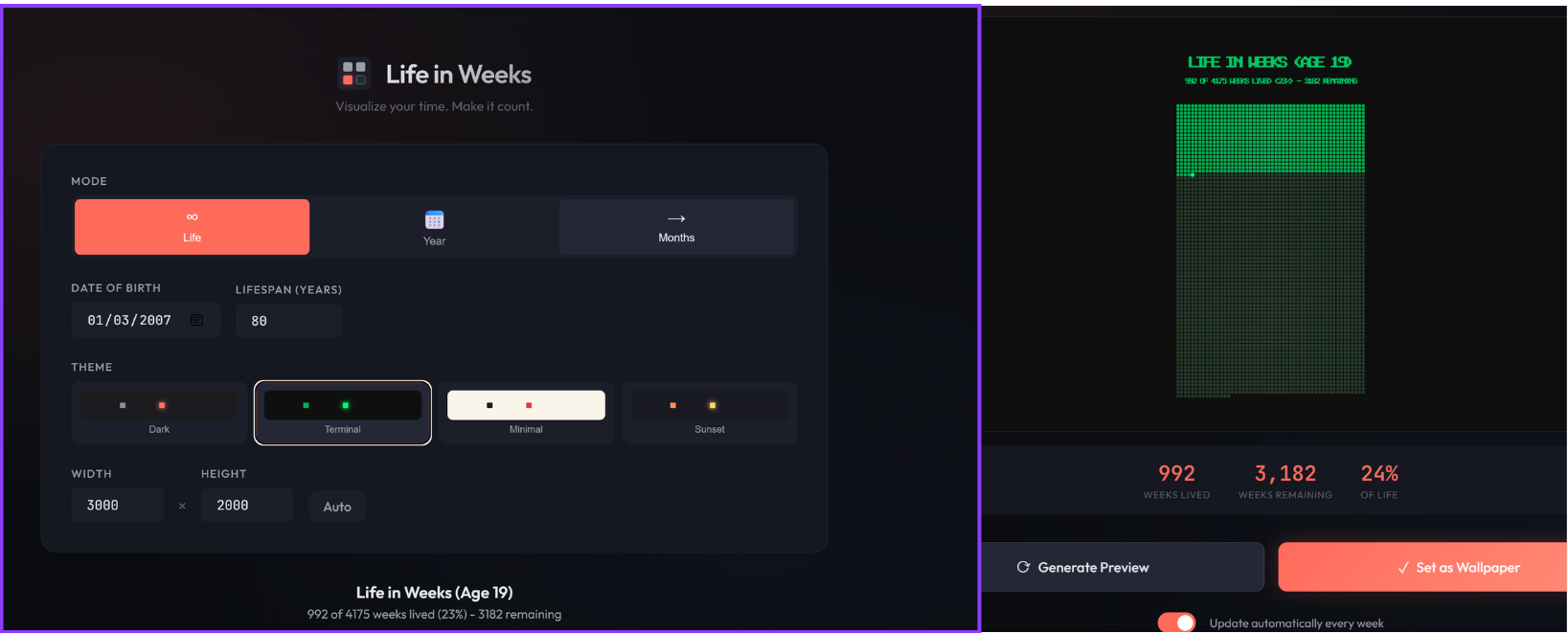
GUI App Usage
1. Install and Launch
Download the installer for your platform and run it. Launch "Life in Weeks" from your applications.
2. Choose Your Mode
Select from three tabs at the top:
- Life - Enter your date of birth and expected lifespan
- Year - Shows weeks until end of current year
- Months - Set how many months ahead to visualize
3. Customize Theme
Click on one of the four theme previews:
- Dark - Soft dark with coral accents (default)
- Terminal - Green on black, Matrix style
- Minimal - Black on cream, classic poster
- Sunset - Warm gradient from past to future
4. Generate Preview
Click "Generate Preview" to see your wallpaper. The preview updates in real-time with your settings.
5. Set as Wallpaper
Once you're happy with the preview, click "Set as Wallpaper" to apply it to your desktop.
6. Enable Auto-Update
Toggle "Update automatically every week" to have your wallpaper regenerate every Monday at 6 AM.
Platform Notes
Windows
- CLI: Requires no additional dependencies
- GUI: Standard Windows installer (.msi)
- Scheduling: Uses Windows Task Scheduler
- Wallpaper: Sets via Windows API
macOS
- CLI: No dependencies needed
- GUI: Standard macOS app bundle (.dmg)
- Scheduling: Uses launchd (LaunchAgents)
- Wallpaper: Sets via AppleScript
Linux
- CLI: No dependencies needed
- GUI: AppImage or build from source
- Scheduling: Uses systemd user timers
- Wallpaper: Supports GNOME, KDE, XFCE, MATE, Cinnamon